Making sure your shareholders see what you decide to show them
Here's something many admins don't realize: you have complete control over what cap table information your shareholders, employees, and other stakeholders can see on their Carta portfolios.
When you set up Carta, one of the first things you should configure is your cap table access settings. This is where you decide what company information gets shared, and with whom.
Why this matters: Cap table access settings let you manage information based on a stakeholder's relationship to the company. You might want your investors to see certain details, your employees to see others, and some information locked down entirely. You don’t have to choose between "show everything" or "hide everything" but you can make intentional decisions about transparency on your terms.
How to set it up:
If you have Full access or Company editor permissions, here's where to go:
Navigate to Essentials → View cap table
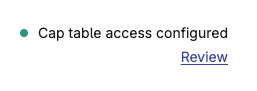
At the top right of the page, click Review under "Cap table access configured"
From there, you can manage cap table access based on stakeholder relationships or at the individual level
A quick note: Cap table access settings are different from user and permissions management. Cap table access controls what stakeholders see on their portfolios. User and permissions management controls who can manage your company account data and cap table.
Next step: Log in and check your cap table access settings. If you're not sure what configuration makes sense for your company stage or shareholder structure, this is a perfect question for the community.